
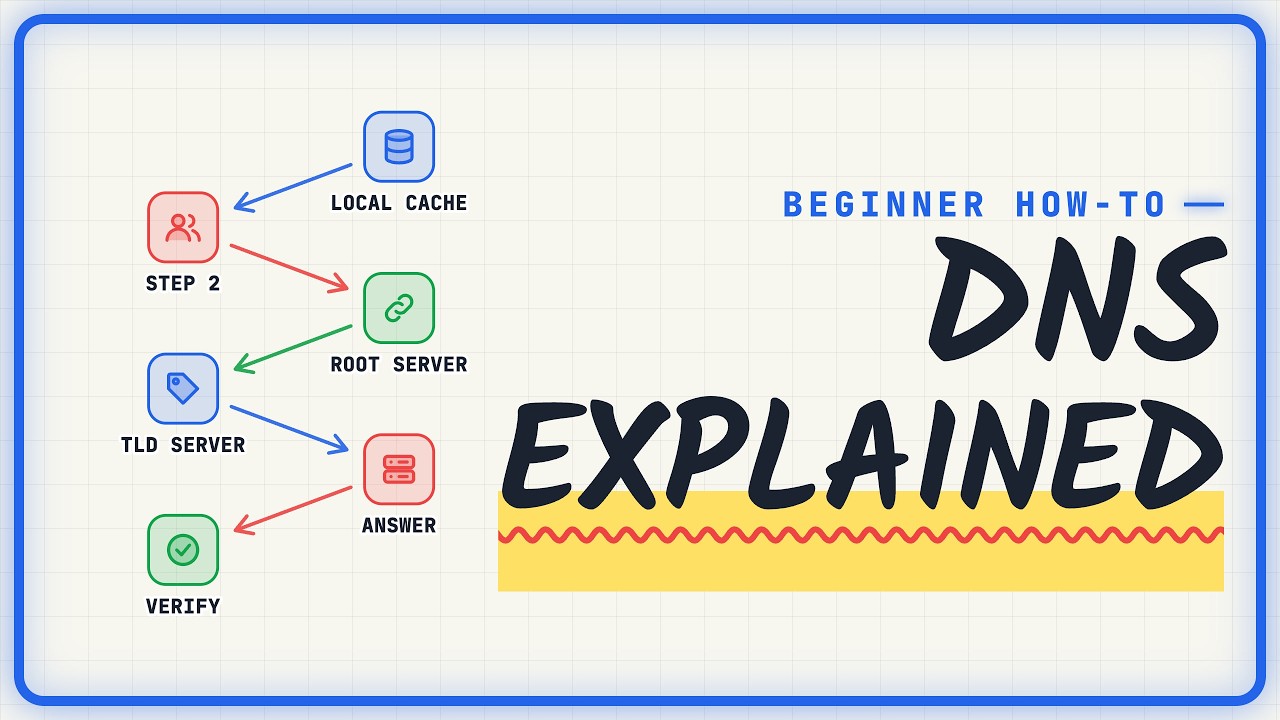
How DNS works comes down to one job: turning a name like example.com into the IP address your computer needs to connect. Each time you type a web address, the lookup quietly passes through up to five stops: your local cache, a recursive resolver, a root server, a TLD server and an authoritative server. It usually finishes in milliseconds, and you never see it happen.
This guide follows a single lookup for example.com from the moment you press Enter until your browser has an address to connect to. At each stop you'll learn what that server knows, what it hands back and why the system is built this way. You'll also run the lookup in your own terminal and learn the fixes for the most common DNS errors.
- DNS translates human-friendly names into the IP addresses computers use to connect.
- Your device checks its browser and OS caches before asking anyone else.
- A recursive resolver does the legwork, asking the root, TLD and authoritative servers for you.
- The authoritative answer comes with a TTL that controls how long it can be cached.
- You can trace and verify the whole chain yourself with nslookup or dig.
- 0:00Intro
- 0:30Follow one lookup end to end
- 1:18Check the local cache first
- 2:13Ask the recursive resolver
- 3:06Query a root server
- 4:04Query the TLD server
- 5:03Get the answer and cache it
- 5:59Verify the lookup yourself
- 7:00Fix the common DNS errors
- 7:52The five steps of a lookup
- 8:23Cache first, then resolver, root, TLD
Follow one lookup from name to IP address
People remember names; computers connect using IP addresses. DNS sits between the two and translates one into the other, much like a contact list for the internet. When you type example.com, your browser can't do anything with that name until DNS hands back a number it can connect to.
To see how that translation happens, it helps to follow one real request rather than study the system in the abstract. We'll trace a lookup for example.com hop by hop, noting which server answers at each step and what it says. By the end, you should be able to trace any domain to its IP address yourself.
You don't need any DNS knowledge to follow along, and the tools are probably already on your machine. Here is what to have ready before you start.
- A computer with internet access
- A terminal app, such as Terminal on a Mac or PowerShell on Windows
- The nslookup or dig command, which most systems already include
- No prior DNS knowledge required
Check the local cache before going online
The lookup doesn't start out on the internet. It starts on your own computer, where answers to recent lookups are kept close at hand. Think of it as checking your own notes before walking over to ask a librarian. If you visited example.com a few minutes ago, the answer may already be saved.
The order is simple. Your browser first checks its own cache for names it resolved recently. If that misses, it checks the operating system's cache. Only when both come up empty does the request leave your device and go to a resolver.
A cache hit means the saved IP address is used straight away, with no trip across the network. That's why a site you just visited often opens faster the second time. A cache miss means nothing useful was saved, or the saved answer has expired, so your device has to ask for help. Many lookups never get past this step, which is exactly why caching matters so much.
- Browser cache is checked first
- OS cache is checked next
- A hit returns the IP instantly, with no network trip
- A miss, or an expired answer, sends the question to the resolver
Ask the recursive resolver to do the legwork
When the local cache is empty, your device hands the question to a recursive resolver. Your computer doesn't talk to the whole internet. It asks one trusted server a single question and waits for that server to come back with the IP address.
By default, your resolver is usually run by your internet provider, though many people switch to a public DNS provider instead. Either way, it plays the same role. It contacts the root, TLD and authoritative servers on your behalf. It's called recursive because it keeps asking until it has a final answer, rather than handing you partial directions.
You can see which resolver you're using right now. Open your terminal and run nslookup example.com. The first two lines of output, Server and Address, identify the resolver that just took your question.
- Run nslookup example.com in your terminal
- Read the Server and Address lines at the top
- Note whether it's your ISP's resolver or a public one
# See which resolver answers you
nslookup example.com
# The first lines of the output:
# Server:  <your resolver>
# Address: <its IP address>
Query a root server for directions
Once the resolver has your question, it checks its own cache first. If the answer isn't there, it starts at the very top of DNS: the root. The root doesn't know where every website lives. It knows something more useful, which is who is responsible for each ending, such as .com.
It helps to picture DNS as an upside-down tree. The root, written as a single dot, sits at the top. Top-level domains like .com and .org sit just below it. Further down are individual domains such as example.com, whose own servers hold the real answer.
The root's reply is a referral. In effect it says: I don't know example.com, but here are the .com TLD servers. It never returns the final IP address; it only points one level down the tree. Resolvers have the root server addresses built in, so every uncached lookup can begin from the same known place.
- The root returns a referral, not an IP address
- The referral points to the TLD servers for the name's ending
- Resolvers already know the root server addresses
Query the TLD server for the name servers
Next, the resolver follows the root's referral and asks a .com TLD server. TLD stands for top-level domain, the last part of a name. Endings like .com, .org and .net are all TLDs, and each has its own set of servers.
TLD servers don't store website addresses. Their job is to track who is responsible for each domain under their ending. So when asked about example.com, the .com server replies with the names of example.com's authoritative name servers. That's the final referral: the resolver now knows exactly who holds the real answer.
You can see this list yourself. Run dig NS example.com +short to print the domain's authoritative name servers, the same list the TLD hands back. To watch every hop from the root downward, try dig +trace example.com.
- Run dig NS example.com +short to list the name servers
- Run dig +trace example.com to see each referral in order
- Confirm the TLD step returns server names, not an IP
# Ask who is in charge of example.com
dig NS example.com +short
# Prints its authoritative name servers
# Or watch every hop, root to answer:
dig +trace example.com
Get the authoritative answer and cache it
The last hop goes to the authoritative server, which finally holds the actual IP address for example.com. This server is the source of truth for the domain. Seen end to end, the resolver asked the root where .com lives, asked the .com TLD about example.com, then asked example.com's name servers for its IP.
The answer arrives with a time to live, or TTL: a number of seconds set by the domain owner. The resolver caches the answer for that long, so the next person to ask gets it immediately, with no trip to the root or the TLD.
The resolver then passes the IP address back to your device, which caches it too. Your browser connects to that server, and the page starts loading. All five hops usually complete in milliseconds.
- The authoritative server returns the IP address
- The TTL sets how long the answer may be reused
- Both the resolver and your device cache the result
Verify the DNS lookup yourself with dig
Now check that the whole chain works by running one command and reading the result the way a resolver sees it. Type dig example.com and press Enter. Find the ANSWER SECTION, which shows the name, the TTL and the IP address. On Windows, nslookup example.com also works.
The useful trick is to run the same command twice and compare. An IP address next to example.com means the root, TLD and authoritative servers all did their part, even though you asked only once. On the second run, the TTL should be smaller, because the resolver answered from its cache and is counting down until that saved answer expires.
Near the bottom of the output, dig also reports the query time. A cached answer usually comes back noticeably faster than the first, uncached one, which is caching made visible.
- An IP appears next to example.com in the ANSWER SECTION
- The TTL is lower on the second run
- The query time drops when the answer comes from cache
# Look up the IP address
dig example.com
# Find ANSWER SECTION: name, TTL, IP
# Run it again: the TTL is lower,
# and the query time usually drops
Fix the most common DNS errors
When a lookup fails, think back to the path you just traced. Most DNS trouble comes from one of three places: a saved answer that's out of date, a typo or unregistered name, or a resolver that won't respond.
A stale answer shows up when a site has moved but you still get its old IP, so flush your OS and browser caches. NXDOMAIN means the domain doesn't exist, so check the spelling and confirm the domain is registered. If the lookup timed out, your resolver isn't responding, so try a public resolver. If only the browser fails while the terminal works, restart the browser.
On Windows, run ipconfig /flushdns to clear the cache. On a Mac, the two sudo commands shown clear the system cache. Running nslookup example.com 1.1.1.1 sends the question straight to a public resolver, which rules out problems with your usual one.
- Stale answer: flush OS and browser caches
- NXDOMAIN: check spelling and domain registration
- Timed out: query a public resolver directly
- Browser-only failure: restart the browser
# Flush caches: Windows, then macOS
ipconfig /flushdns
sudo dscacheutil -flushcache
sudo killall -HUP mDNSResponder
# Try a public resolver
nslookup example.com 1.1.1.1
Key takeaways
- Every DNS lookup follows the same order: cache, resolver, root, TLD, authoritative.
- Caching at the browser, OS and resolver means many lookups never leave your machine.
- The root and TLD servers give referrals; only the authoritative server returns the IP.
- The TTL, set by the domain owner, controls how long an answer can be reused.
- Running dig twice shows caching in action through a falling TTL and faster query time.
- Most DNS errors come from stale caches, typos or an unreachable resolver.
Frequently asked questions
What is a recursive resolver in DNS?
It's the server your device asks when its local cache can't answer. The resolver contacts the root, TLD and authoritative servers on your behalf and keeps asking until it has the IP address. It's usually run by your internet provider or a public DNS provider.
Why doesn't the root server just return the IP address?
The root doesn't store addresses for individual websites. It only knows which servers handle each top-level domain, such as .com, so it returns a referral that points one level down the DNS tree.
What does TTL mean in a DNS answer?
TTL stands for time to live. It's a number of seconds, set by the domain owner, that says how long resolvers and devices may cache the answer before asking again.
How can I see which DNS server my computer uses?
Open a terminal and run nslookup example.com. The Server and Address lines at the top of the output show the resolver your computer is currently using.
What does NXDOMAIN mean?
NXDOMAIN means the domain name doesn't exist as far as DNS can tell. Check the spelling first, then confirm the domain is actually registered.
Why does a website still show the old version after it moved?
Your device or browser is likely using a stale cached answer that still points to the old IP. Flushing your operating system and browser caches forces a fresh lookup.
