
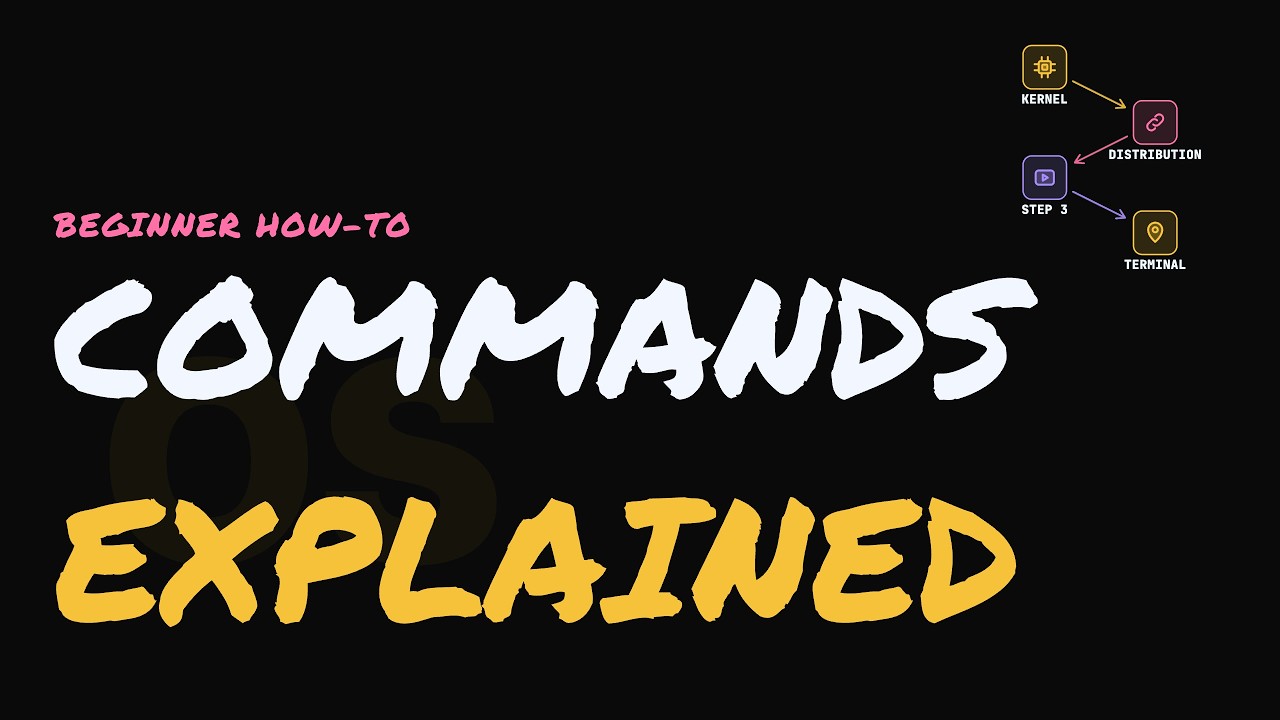
How Linux works comes down to three layers. The kernel runs the hardware, a distribution packages that kernel with everyday software, and commands typed in the terminal let you control the whole system. Every Android phone and most web servers run on Linux, yet most people have never looked inside it.
This guide follows those layers in order, from the core of the system to commands you type yourself. You don't need any programming knowledge. By the end you'll have a working Linux system in a safe virtual machine, a handful of commands you can use with confidence, and a short list of fixes for the errors beginners hit most often.
- The kernel sits between your programs and the hardware, managing devices, memory and CPU time.
- A distro such as Ubuntu, Fedora or Debian bundles the same kernel with a desktop, apps and tools.
- A virtual machine lets you install and experiment with Linux without risking your real files.
- pwd, ls, cd, mkdir and cat cover most everyday terminal work, and uname -r confirms the kernel is running.
- Most beginner errors come from missing rights, typos or wrong paths.
- 0:00Intro
- 0:23What you'll achieve and need
- 1:02Learn what the kernel does
- 1:54Pick a Linux distribution
- 2:40Install it in a virtual machine
- 3:28Open the terminal and look around
- 4:24Create folders and read files
- 5:12Ask the kernel its version
- 5:57Fix the most common errors
- 6:49Everything you learned today
- 7:27Kernel runs, distros package, commands control
Gather what you need before you start
Before touching anything, it helps to be clear about the goal. You want to understand what the kernel does, choose a distribution, and run a few basic commands. That's all. You don't need to know any programming, and nothing here asks you to change the system you already rely on every day.
The equipment list is short. Any ordinary laptop or desktop will do. You need an internet connection to download Linux. You also need somewhere safe to put it, either a virtual machine running on your computer or a spare USB drive. With those three things you can follow every step that comes next.
- A computer: any ordinary laptop or desktop
- Internet access to download a Linux installer
- A virtual machine or a spare USB drive as a safe place to install it
Understand what the Linux kernel does
The kernel is the heart of Linux. Every program you run talks to it, and the kernel talks to the hardware on that program's behalf. Think of it as a middle layer that no app can skip. A request travels down the stack: your app asks for something, the shell passes on your commands, the kernel decides how to do it, and the hardware does the actual work. The answer then travels back up.
The kernel has three main jobs. First, hardware: programs never touch the disk or network card directly. They ask the kernel, and the kernel uses the right driver to talk to that device. Second, memory: the kernel hands out RAM to each program and keeps them apart, so one buggy app can't overwrite another app's data.
Third, processes: the kernel switches the CPU between programs so quickly that they all seem to run at the same time. That's why you can have a browser, a music player and a terminal open together. Put simply, the kernel runs the hardware for every program, and everything else in Linux is built on top of it.
- Hardware: talks to the CPU, disk, screen and network through drivers
- Memory: gives each program its own separate space in RAM
- Processes: shares CPU time so many programs run at once
Pick a Linux distribution
The kernel on its own isn't something you can use day to day. That's where a distribution, or distro, comes in. A distro bundles the kernel with everything else you need, such as a desktop, apps and tools. This explains why there are many Linux versions but only one kernel underneath them all.
Three well-known examples wrap around the same core. Ubuntu is very popular with beginners. Fedora tends to ship newer software. Debian is known for being stable and steady. Because they share the same kernel, the basic commands in this guide work almost the same on all of them, so your choice isn't permanent.
If you're unsure, pick Ubuntu. It has plenty of beginner guides and help online, which makes the first few days easier. Choosing quickly matters more than choosing perfectly. You can always try another distro later, and the skills you build carry straight across.
- Ubuntu: a friendly first choice with lots of beginner help
- Fedora: tends to ship newer software
- Debian: known for stability
- All three share the Linux kernel, so commands transfer between them
Install Linux in a virtual machine
The safest way to install your distro is inside a virtual machine: a computer that runs as a program on your real computer. Your own files stay exactly where they are, and next to them sits a separate box where Ubuntu runs. If anything goes wrong inside that box, your real system stays untouched, so you can experiment freely.
To set it up, download your distro's installer file, attach it to a new virtual machine, and start it. From there, follow the on-screen steps just as you would when installing any other operating system. When it finishes, you'll have a full Linux desktop running in a window.
A spare USB drive is the other option. Once Linux is written to the drive, it can start from it on real hardware. Either route gives you the same result: a safe place to practise, which is all you need for the rest of this guide.
- Download the installer file for the distro you picked
- Create a new virtual machine and point it at that file
- Start the VM and follow the on-screen installer steps
- Alternatively, write Linux to a spare USB drive and start from it
Open the terminal and find your way around
With Linux running, open the terminal, the text window where you type commands. On Ubuntu, search for Terminal in the app menu. Three commands cover most everyday navigation: pwd, ls and cd. Together they tell you where you are, what's around you, and how to move somewhere else.
pwd stands for print working directory. It prints the folder you're in right now, such as /home/you. Whenever you feel lost, run it to see your exact location in the file system. ls lists the files and folders in your current location. A good habit is to run it after every move, so you always know which names you can open next.
cd changes folder. cd Documents moves into that folder, and cd .. goes back up one level. Watch the spelling, because Linux is case-sensitive: Documents and documents are treated as different names. With just these three commands, you can already explore the whole system.
- pwd prints your current folder
- ls shows what's inside it
- cd folder-name moves in; cd .. moves up one level
- Folder names are case-sensitive
pwd
# /home/you
ls
cd Documents
cd ..
Create a folder and read a file
Once you can move around, you can start making things of your own. A short worked example shows the idea. Run mkdir notes and a folder called notes is created. Run cd notes and you're now in /home/you/notes. Use echo to write a word into a new file called todo.txt, then run cat todo.txt and the terminal prints hi.
mkdir is short for make directory. Give it a name and the folder appears. If the name contains spaces, wrap it in quotes; otherwise Linux treats each word as a separate name and creates two folders. cat prints a file's contents straight into the terminal, which makes it ideal for checking small text files.
Creating something and then checking it is most of what everyday terminal work involves. Follow along in your own terminal rather than just reading, because typing the commands yourself is what makes them stick.
- mkdir notes creates a folder called notes
- cd notes moves you into it
- echo writes text into a file such as todo.txt
- cat todo.txt prints the file's contents
- Wrap folder names that contain spaces in quotes
Ask the kernel for its version
To confirm everything really works, run a command that talks to the kernel directly: uname -r. This is the same kernel described earlier. Your request goes to the kernel, and the kernel answers with its release number, for example 6.8.0-generic.
Don't worry about matching a specific number. Your exact version depends on your distro. Any version number showing up means the kernel is running and your terminal is talking to it, which proves your setup works from the kernel up.
If you want more detail, try uname -a. Without the r, the a flag prints everything at once, including the machine type. It's a handy way to see a summary of the system you're working on.
- uname -r prints the kernel release
- Any version number means success
- uname -a shows more details, including the machine type
Fix the most common beginner errors
Sooner or later you'll see an error, and that's completely normal. Linux error messages are short but honest, and most beginner problems come from just three causes. Read the message first, because it usually tells you what's wrong.
Permission denied means you need admin rights, so put sudo before the command. Command not found usually means a misspelling, so check carefully, including capital letters: typing LS gives command not found, while ls works. No such file usually means you're in the wrong folder, so run pwd and ls to check where you are and what's there.
Use sudo carefully. It runs a command as the administrator and asks for your password. That power is useful, but a wrong command run with sudo can change important system files, so double-check before pressing Enter. Once you know these patterns, most errors take seconds to fix.
- Permission denied: add sudo before the command
- Command not found: check spelling and capital letters
- No such file: run pwd and ls to check your location
- Double-check any command before running it with sudo
Key takeaways
- The kernel manages hardware, memory and processes for every program.
- Distros bundle the kernel with software; Ubuntu is a friendly place to start.
- A virtual machine keeps your experiments separate from your real files.
- pwd, ls, cd, mkdir and cat let you explore and create files.
- uname -r confirms the kernel is running.
- sudo, careful spelling and checking your path fix most errors.
Frequently asked questions
What is the difference between Linux and a Linux distro?
Linux, strictly speaking, is the kernel: the core that manages hardware, memory and processes. A distro such as Ubuntu, Fedora or Debian bundles that kernel with a desktop, apps and tools so you can use it day to day.
Which Linux distro should a beginner choose?
Ubuntu is a friendly first choice because it has lots of beginner guides and help online. Since distros share the same kernel, basic commands work almost the same everywhere, so you can switch later.
Can I try Linux without affecting my current computer?
Yes. Installing Linux in a virtual machine runs it as a program on your existing computer, so mistakes stay inside the virtual machine and your files stay untouched. A spare USB drive is another option.
Do I need to know programming to use the Linux terminal?
No. Basic commands like pwd, ls, cd, mkdir and cat are simple instructions, not programming. They're enough to navigate the system, create folders and read files.
How do I check which Linux kernel version I have?
Open the terminal and run uname -r. It prints the kernel release, such as 6.8.0-generic, though your number will depend on your distro. Run uname -a for more details.
Why does Linux say "command not found"?
Usually the command is misspelled. Linux is case-sensitive, so LS is not the same as ls. Check the spelling and capitalisation carefully and try again.
