
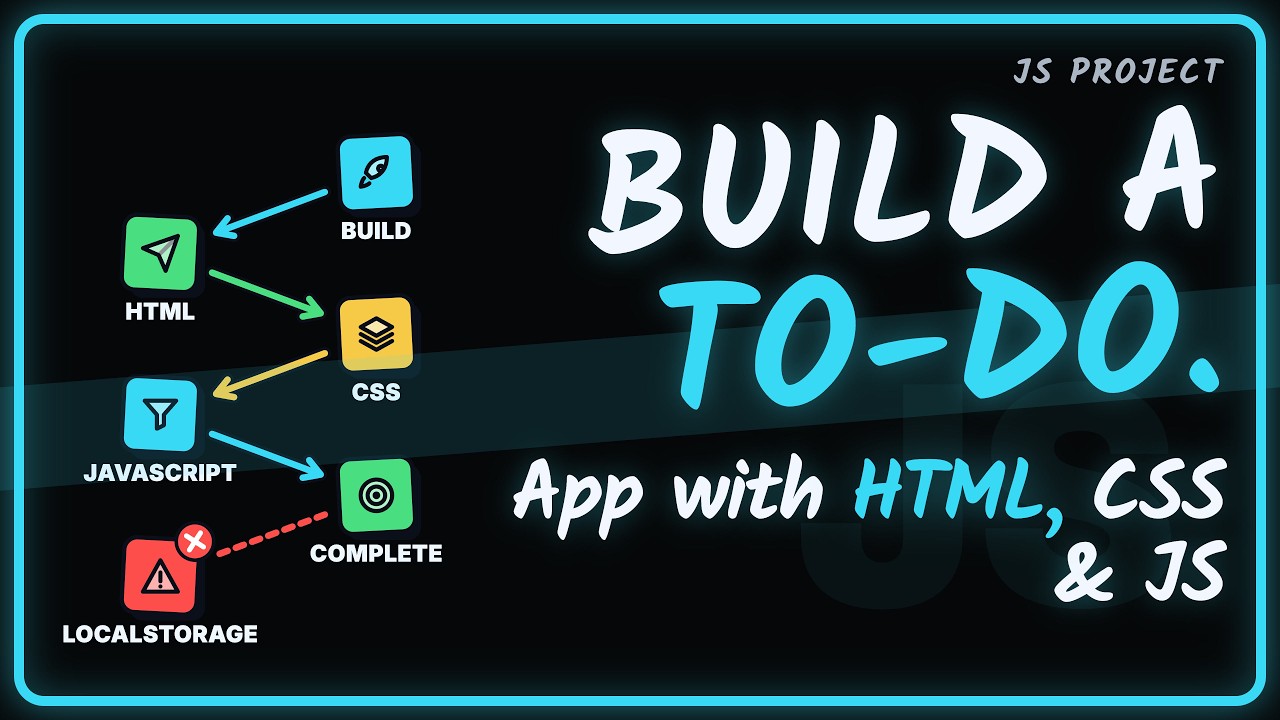
A JavaScript to-do app is a small web page that lets you add, complete and delete tasks. This one keeps every task after a refresh. You build it from three plain files, HTML, CSS and JavaScript, plus the browser's built-in localStorage. No frameworks. No installs. No build step.
Persistence is what makes this project worth doing. Most beginner to-do lists forget everything the moment you hit reload. This one doesn't. Below, each step matches a stage of the video, in order. Every step comes with concrete checks, so you know it works before you move on.
- Three files: index.html for structure, style.css for looks, app.js for behaviour.
- A form gives you Enter-key and button submission for free.
- One click listener on the list handles complete and delete for every task.
- Save with JSON.stringify and load with JSON.parse, or localStorage breaks your data.
- If your tasks survive a reload, persistence works.
- 0:00Intro
- 0:26What you'll build and need
- 1:09Build the HTML skeleton
- 1:49Style it with CSS
- 2:30Wire up JavaScript to add
- 3:12Handle complete and delete
- 3:49Save tasks to localStorage
- 4:29Load tasks back on startup
- 5:08Reload to test persistence
- 5:46Fix the classic mistakes
- 6:18Everything you built today
- 6:38Master vanilla, and frameworks make sense
Gather the three files and a few basics
Lock in the target before you write any code. The app must do four things: add tasks, complete them, delete them, and keep them after a refresh. That's the whole goal. Everything below serves it.
The project is three files in one folder. index.html is the skeleton. style.css gives it the look. app.js is the brain that makes it react. You don't need a package manager or a terminal. Double-click index.html and it opens straight in your browser.
You do need some skills. Know your DOM basics, because you'll create elements by hand. Be comfortable with events, because everything in this app reacts to the user.
- A code editor, whichever one you like
- A modern browser
- index.html, style.css and app.js in the same folder
- Basic DOM and event-handling knowledge
Build the HTML skeleton with a form and empty list
Open index.html. You need four things: a form, an input, a button and an empty list. The form captures new tasks. The empty ul waits for JavaScript to fill it.
Why a form instead of a lone button? You get the Enter key for free. Clicking Add and pressing Enter both fire the same submit event, so you write one handler, not two. Mark the input as required, and give the form an ID so your script can find it.
Leave the list empty on purpose. Don't hardcode any tasks. Load app.js with a script tag at the end so the elements already exist when it runs. The HTML stays a clean shell, and your data lives in JavaScript.
- The form has an ID
- The input is marked required
- The ul is empty
- The script tag for app.js comes last
<form id="todo-form">
  <input id="todo-input" required>
  <button>Add</button>
</form>
<ul id="todo-list"></ul>
<script src="app.js"></script>
Style the app with Flexbox and a done class
The skeleton works but looks raw. Open style.css and add three small rules. The app suddenly feels real.
First, make the form a flex row with a small gap. Give the input flex: 1 so it takes the spare width. The input grows with the screen and the button keeps its size. You don't have to calculate any widths.
Next, add a hover background on list items so users get visual feedback. Then create one done class that draws a line through the text. This is the key design choice. JavaScript only flips a class name, and CSS handles how it looks. Style and logic stay cleanly separated, which makes both easier to change later.
- The form is a flex row with a gap
- The input has flex: 1
- List items change background on hover
- A .done class applies a strikethrough
form { display: flex; gap: 8px; }
input { flex: 1; }
li:hover { background: #f2f2f2; }
li.done { text-decoration: line-through; }
Add tasks with a single submit listener
It looks good. Now make it move. In app.js, listen for the form's submit event, create a list item, and append it. Follow one task through. You type "Buy milk" and press Enter. Submit fires. You call e.preventDefault() to stop the page reloading. You create a new li containing "Buy milk". Then list.append(li) puts it on screen.
Guard the input before you create anything. Read the value, call trim(), and return early if the result is empty. That blocks blank and whitespace-only tasks. After adding, clear the box so the next task starts fresh.
Use textContent, never innerHTML, for anything the user typed. textContent treats input as plain text, so nobody can inject HTML into your list. Building this habit on a small project protects you on big ones.
- e.preventDefault() runs first in the handler
- Input is trimmed, and empty input is skipped
- Task text is set with textContent
- The input clears after each add
Handle complete and delete with event delegation
Adding works. Now handle the other two actions. The trick is to put one listener on the whole list, not one on each item. A single listener covers every task, even ones you haven't added yet.
Attach a click listener to the list. Inside it, use closest('li') to find the task that was clicked. If the click target is the delete button, remove that item. Otherwise, toggle the done class, and your CSS strikes it through.
This works because of event bubbling. Clicks travel up from the item to the list, so one parent listener catches them all. New items just work. You never rebind listeners after appending, which means less code and fewer bugs.
- Exactly one click listener, attached to the list
- closest('li') identifies the clicked task
- The delete button removes the item
- Any other click toggles .done
list.addEventListener('click', e => {
  const li = e.target.closest('li');
  if (e.target.matches('.del')) li.remove();
  else li.classList.toggle('done');
});
Save tasks to localStorage with JSON.stringify
Hit refresh right now and everything vanishes. Fix that by keeping your tasks in an array of objects and saving the array whenever it changes. A task looks like { text: "Buy milk", done: false }.
localStorage stores strings only. Hand it a raw object and you get the useless text "object Object". That's why JSON.stringify is mandatory. It turns your array into plain text, and setItem stores that string under the key todos.
Write one save function and call it after every add, every toggle and every delete. Don't save in some places and skip others. With one rule applied everywhere, storage always matches what's on the screen.
- Tasks live in an array of { text, done } objects
- The array is passed through JSON.stringify before saving
- Data is stored under the key todos
- save() runs after add, toggle and delete
Load tasks back when the page opens
Saving is only half the job. When the page loads, you have to read the data back and redraw it. This runs once, the moment app.js loads. Call getItem('todos'), take the JSON string it returns, parse it, and render each task.
JSON.parse rebuilds your array of objects so you can loop over it. Without it, you'd be looping over a string, and nothing would render correctly.
Plan for first-time visitors. On a first visit, getItem returns null because nothing has been saved yet. Fall back to an empty array with ||. That one operator means no crash for new users. Every later change goes back to storage through setItem.
- Loading runs once, when app.js starts
- getItem('todos') is wrapped in JSON.parse
- || handles the first visit
- Each loaded task is rendered, including its done state
Reload the page to test persistence
All four steps are in. Now prove it. Adding a task isn't the real test. The reload is. Type "Buy milk" in the New task field and click Add. Click the task to check it off with a strikethrough. Then reload. It should still be there, still crossed out.
Go further than a normal refresh. Close the tab, then reopen the file. Your tasks should come back exactly as you left them.
Then look under the hood. Open DevTools, go to the Application tab, and find the todos key under localStorage. You'll see the exact data you saved, which makes any mismatch easy to spot.
- Tasks survive a normal reload
- Completed tasks stay crossed out
- Tasks survive closing and reopening the tab
- The todos key appears in DevTools > Application
Fix the three classic to-do app bugs
Not working? Don't panic. Almost every broken to-do app fails in one of three ways, and each fix is one line. A familiar symptom: you click Add, the page flashes, and the list comes back empty. That points to one specific cause.
If the page reloads on submit, you forgot preventDefault. Call e.preventDefault() first in the handler. If your loaded tasks are a string instead of an array, wrap getItem in JSON.parse. If storage shows "object Object", you saved a raw object, so save with JSON.stringify. Match the symptom, apply the fix.
- Page reloads on submit: call e.preventDefault() first
- Loaded tasks are a string: wrap getItem in JSON.parse
- Storage shows object Object: save with JSON.stringify
The bottom line
- Three files and zero installs are enough for a real, persistent app.
- A form plus an empty list keeps the HTML clean and puts the data in JavaScript.
- Toggle a single done class in JavaScript and let CSS handle the look.
- Event delegation means one listener handles every task, including new ones.
- Stringify to save, parse to load, and default to an empty array.
- Once you know these fundamentals, frameworks make more sense, because they package the same ideas.
Quick-fire questions
Do I need a framework or Node.js to build a to-do app?
No. This app uses only HTML, CSS and plain JavaScript. You open index.html directly in a modern browser, with no installs, terminal or build step.
Why do my to-do tasks disappear when I refresh the page?
Tasks held only in the page are lost on reload. Save your tasks array to localStorage with JSON.stringify after every change, then read it back with JSON.parse when the page loads.
Why does localStorage show object Object?
localStorage can only store strings. If you pass it an object directly, it saves the text "object Object". Convert the data with JSON.stringify before calling setItem.
Why does my page reload when I click Add?
A form submits and reloads the page by default. Call e.preventDefault() at the start of your submit handler to stop it.
Should I use innerHTML or textContent for task text?
Use textContent for anything the user types. It treats the input as plain text, so nobody can inject HTML into your list.
What is event delegation and why use it here?
Event delegation means putting one listener on a parent element and letting clicks bubble up to it from the children. One listener on the list handles complete and delete for every task, including tasks added later, so you never rebind listeners.
